Sunday, March 27, 2005

Class 8 - Selection Sets

Hello,

On this class we will cover the first ways we can interact with user to allow our application to get information from drawing screen You probably will need to use this method inside your application.

Introduction

This is one of the most important ways to interact with user because it will allow you to get information from drawing screen through selected entities. Some times you will request user to select entities individually and sometimes you will select them using a filter.

A selection set is a group of entities which are currently selected by an user or by an application. The most important concept involved when selecting entities from screen is that AutoCAD will return their names through a type called ads_name. This type contains the entity name (which is valid only on the current session) and it can be converted to ObjectId using the acdbGetObjectId() global function:

Acad::ErrorStatus acdbGetObjectId (AcDbObjectId& objId, const ads_name objName);

This function receives the ads_name and convert it to an AcDbObjectId. Most of selection set functions will still use the ads_name as parameters and on theses cases you don't need to convert it. The ads_name can store several entities or just one. This will depend on how you or the user has performed the selection.

The selection is made using a function called acedSSGet() which will apply a selection or prompt the user to do that. The function signature is:
int acedSSGet (const ACHAR *str, const void *pt1, const void *pt2,
const struct resbuf *entmask, ads_name ss);
How to use

It receives a selection option, two points, a mask and returns the resulting selection set. After use the selection set it needs to be released and this is done through the acedSSFree() function The selection option will instruct AutoCAD interface to do one of the following methods:

Selection Code

Description

NULL

Single-point selection (if pt1 is specified)
or user selection (if pt1 is also NULL)

#

Nongeometric (all, last, previous)

:$

Prompts supplied

.

User pick

:?

Other callbacks

A

All

B

Box

C

Crossing

CP

Crossing Polygon

:D

Duplicates OK

:E

Everything in aperture

F

Fence

G

Groups

I

Implied

:K

Keyword callbacks

L

Last

M

Multiple

P

Previous

:S

Force single object selection only

W

Window

WP

Window Polygon

X

Extended search (search whole database)


This way we can perform the selection by several ways. Some examples are presented below:
ads_point pt1, pt2;
ads_name ssname;
pt1[X] = pt1[Y] = pt1[Z] = 0.0;
pt2[X] = pt2[Y] = 5.0; pt2[Z] = 0.0;
// Get the current PICKFIRST or ask user for a selection
acedSSGet(NULL, NULL, NULL, NULL, ssname);
// Get the current PICKFIRST set
acedSSGet(_T("I"), NULL, NULL, NULL, ssname);
// Repeat the previous selection set
acedSSGet(_T("P"), NULL, NULL, NULL, ssname);
// Selects the last created entity
acedSSGet(_T("L"), NULL, NULL, NULL, ssname);
// Selects entity passing through point (5,5)
acedSSGet(NULL, pt2, NULL, NULL, ssname);
// Selects entities inside the window from point (0,0) to (5,5)
acedSSGet(_T("W"), pt1, pt2, NULL, ssname);

Using Selection filters

Filters are a powerful way to speed up selection sets and avoid runtime operations to verify entities. You can use single filters or composed filters. Each filter is specified through a structure called resbuf. A resbuf is a linked list which store several types of information and may contains several items. To use a filter we need to construct it and pass it as a parameters of acedSSGet() method. The selection is performed but each selected entity will need to respect the filter. There are a lot of filters we can create and the SDK documentation cover all of them. The most used examples are presented below:
struct resbuf eb1, eb2;
TCHAR sbuf1[10], sbuf2[10];
ads_name ssname1, ssname2;
eb1.restype = 0; // Entity name filter
_tcscpy(sbuf1, _T("CIRCLE"));
eb1.resval.rstring = sbuf1;
eb1.rbnext = NULL;
// Retrieve all circles
acedSSGet(_T("X"), NULL, NULL, &eb1, ssname1);
eb2.restype = 8; // Layer name filter
_tcscpy(sbuf2, _T("0"));
eb2.resval.rstring = sbuf2;
eb2.rbnext = NULL;
// Retrieve all entities on layer 0
acedSSGet(_T("X"), NULL, NULL, &eb2, ssname2);

Modifying entities through a selection set

To modify entities inside a selection set we need to walk through selection items, get each one, convert the ads_name to an ObjectId, open the entity for write, modify it and then close it. This operation can also be done using a transaction which is, in long operations, much better.

To show you how to walk through a selection set I will present a short code to select all CIRCLE entities inside the drawing and then change its color to red. The operation is pretty simple and is done this way:

// Construct the filter
struct resbuf eb1;
TCHAR sbuf1[10];
eb1.restype = 0; // Entity name
_tcscpy(sbuf1, _T("CIRCLE"));
eb1.resval.rstring = sbuf1;
eb1.rbnext = NULL;

// Select All Circles
ads_name ss;
if (acedSSGet(_T("X"), NULL, NULL, &eb1, ss) != RTNORM){
acutRelRb(&eb1);
return;
}

// Free the resbuf
acutRelRb(&eb1);

// Get the length (how many entities were selected)
long length = 0;
if ((acedSSLength( ss, &length ) != RTNORM) (length == 0)) {
acedSSFree( ss );
return;
}

ads_name ent;
AcDbObjectId id = AcDbObjectId::kNull;

// Walk through the selection set and open each entity
for (long i = 0; i < length; i++) {
if (acedSSName(ss,i,ent) != RTNORM) continue;
if (acdbGetObjectId(id,ent) != Acad::eOk) continue;
AcDbEntity* pEnt = NULL;
if (acdbOpenAcDbEntity(pEnt,id,AcDb::kForWrite) != Acad::eOk)
continue;
// Change color
pEnt->setColorIndex(1);
pEnt->close();
}

// Free selection
acedSSFree( ss );


I have used some new functions (like acdbOpenAcDbEntity) that are also part of ObjectARX SDK. Pay attention to the memory releases regarding to selection set and resbuf types. Note that I have used also a function called acedSSLength() to get the length of selection set.
The acedSSName() function get an at the passed index. If we have more than one entity selected this loop will get every single entity into this selection set.

See you next class.

Tuesday, March 22, 2005

AutoCAD 2006 - Interview with Albert Szilvasy (Autodesk)

Hello,

I would like to present a short interview that I made (by e-mail) with a friend from Autodesk. His name is Albert Szilvasy and he is one of the best programmers I ever know from ADN. Since 1999 he is one of the main developers of AutoCAD. See the full interview below. Hope you enjoy!

[Fernando:] Albert, how long are you an ADN / AutoCAD team member?

[ALBERT:] I think I I've been an ADN member since '95. I joined Autodesk in '97 (ADN support) and the AutoCAD team in '99.

[Fernando:] Autodesk has just released the AutoCAD 2006 which has a lot of new features. Which one is your favorite?

[ALBERT:] I'm afraid I'm a bit jaded: my favorite is the expanded .NET API.

[Fernando:] AutoCAD 2006 has increased the .NET API implementation? How long you expect finish to expose the whole API?

[ALBERT:] I don't think we will ever "finish". As we add new features to AutoCAD the .NET API will evolve. The .NET API already covers 95% of what one can do with ObjectARX in C++. I expect that the final gap between the unmanged C++ and .NET API will decrease over time. In fact, I expect that some features will be exposed in the .NET API only and not in ObjectARX since their underlying implementation will be managed code.

[Fernando:] .NET will be just one more customization option or Autodesk plans to remove AutoLISP or VBA soon?

[ALBERT:] We have no plans to remove AutoLISP or VBA. Customers rely on these technologies. We actively encourage customers to use the .NET API for new work simply because we believe it is a more productive environment.

[Fernando:] Is now possible to create custom objects using .NET API? If so, is there any sample in SDK?

[ALBERT:]No, it isn't possible to create custom objects using the .NET API. However, we do have a sample that shows you how to wrap custom objects so that they are accessible from any .NET language. The wrapper is for the "Polysamp" sample. It is on the ObjectARX SDK for AutoCAD 2006.
We have had a lot of internal debate if we should expose the creation of custom objects to .NET developers. We decided that we have higher piority items for AutoCAD 2006. This debate is still ongoing. In my opinion custom objects is an overused feature. Many times developers want to be able to "subclass" existing entities on a instance by instance basis. I think we could provide more value to developers if we allowed them to do this instead of simply re-exposing the existing custom object APIs.
Compare the ObjectARX custom object mechanism to what Windows offers with window classes: you can register new window classes (this is roughly equivalent to our custom objects) but you can also subclass existing windows. You can take an existing window instance and change its behavior completely. AutoCAD Map provides similar capability with its "stylization" feature: it essentially hijacks the worldDraw/viewportDraw function for certain instances. I think this mechanism could be generalized to allow 3rd party developers to specify custom callback for "transformBy", "getGripPoints", "worldDraw" etc. on an instance by instance basis. We are looking for the opinions of the community to figure out where to go next here.

[Fernando:] The only option to load .NET modules is still only through the NETLOAD command? Is there a way to unload them in 2006?

[ALBERT:] To load a .net module you either use the netload command or demand loading registry keys (you need to use the special "MANAGED"
dword value to mark the dll as a .NET module). You still can't unload assemblies in AutoCAD 2006. The CLR does not support unloading of individual assemblies. It only supports unloading entire Appdomains.
This is a complication that we didn't want to introduce at this stage.
We may do it in a future release though since .NET 2.0 makes working with AppDomains easier. Nevertheless, I expect that the new Edit and Continue feature in Visual Studio 2005 will make the ability to unload assemblies a less requested feature.

[Fernando:] The new interface customization without the old MNU based files will provide new features? Is there a new COM interface to customize menus and toolbars?

[ALBERT:] Yes. We switched to a new format so that we can introduce new features easier. The COM API to customize toolbars and menus at runtime hasn't changed and works as it has been since R2000. Customers have asked for more programmetic access to the CUI file itself so we are looking into that.

[Fernando:] The major problem in VC.NET is about application load speed because .NET framework initialization takes some seconds to start. AutoCAD 2006 has improved this?

[ALBERT:] AutoCAD initializes the .NET framework on a background thread during startup. So if you have multiple processor (or multiple cores on your CPU) then the startup impact should be very little. .NET applications that are demand loaded during an AutoCAD session will load very fast since most of the .NET framework (mscorwrks.dll, system.dll,
system.windows.forms.dll) are already loaded by AutoCAD during startup.

[Fernando:] In AU2004 Autodesk has talked about the community involved around its products. How do you see the future of ADN network and AutoCAD developer communities and professionals?

[ALBERT:] I'm a technologiest. I don't really have much opinion here.
The world is becoming more interconnected so I think communities like the Autodesk Developer Network will become more important. I see that trend with Microsoft and other industry heavyweights with large developer communities.

[Fernando:] What can you tell us about the next AutoCAD releases in terms of customization features?

[ALBERT:] I can't really talk about specifics. I recommend that you look at the trends of the last few years and extrapolate. I'd expect that you won't be far off the mark.

Thank you Albert!

Monday, March 21, 2005

Class 7 - Containers

Hello,

On this class I will present the concepts and features of ObjectARX container objects. We have talked a little bit about them before but now we will go into further details.

Introduction

The container object purpose is to store and manage objects of the same type or class. There are two types of containers: Symbol Tables and Dictionaries. Each type of container has some specific functionalities that were designed to allow easy and efficient access methods.

Symbol Tables

This type of container is designed to store the so called records. Each Symbol Table object store its records using an unique entry name. Through this entry you can obtain the record pointer and read or write information. The container may also receive new entries or even has entries removed (in case they are not used by other objects).

To walk through an object container entries you will need to use a proper iterator which will allow you to get entries and access its objects. AutoCAD has some Symbol Tables to store layers, linetypes, text styles and other objects. As these containers work almost the same way, there is a common base class for each of Symbol Tables, its records and the proper iterators.

The Symbol Table class tree is as follows:

AcDbSymbolTable
AcDbAbstractViewTable
AcDbViewportTable
AcDbViewTable
AcDbBlockTable
AcDbDimStyleTable
AcDbLayerTable
AcDbLinetypeTable
AcDbRegAppTable
AcDbTextStyleTable
AcDbUCSTable

AcDbSymbolTableRecord

AcDbAbstractViewTableRecord
AcDbViewportTableRecord
AcDbViewTableRecord
AcDbBlockTableRecord
AcDbDimStyleTable
Record
AcDbLayerTable
Record
AcDbLinetypeTable
Record
AcDbRegAppTable
AcDbTextStyleTable
AcDbUCSTable

AcDbSymbolTableIterator

AcDbAbstractViewTableIterator
AcDbViewportTableIterator
AcDbViewTableIterator
AcDbBlockTableIterator
AcDbDimStyleTable
Iterator
AcDbLayerTable
Iterator
AcDbLinetypeTable
Iterator
AcDbRegAppTable
Iterator
AcDbTextStyleTable
Iterator
AcDbUCSTable
Iterator

So, to create a layer, for instance, you will need to:
  • Open current Database;
  • Open AcDbLayerTable (for write);
  • Create an AcDbLayerTableRecord (using new operator);
  • Configure the AcDbLayerTableRecord;
  • Add it to AcDbLayerTable which is its proper container;
  • Close the record;
  • Close the container.
void createLayer() {
AcDbLayerTable *pLayerTbl = NULL;
acdbHostApplicationServices()->workingDatabase()
->getSymbolTable(pLayerTbl, AcDb::kForWrite);

if (!pLayerTbl->has(_T("MYLAYER"))) {
AcDbLayerTableRecord *pLayerTblRcd = new AcDbLayerTableRecord;
pLayerTblRcd->setName(_T("MYLAYER"));

AcCmColor color;
color.setColorIndex(1); // red
pLayerTblRcd->setColor(color);
pLayerTbl->add(pLayerTblRcd);
pLayerTblRcd->close();

} else acutPrintf("\nLayer already exists");
pLayerTbl->close();
}


To list all existing layers:
  • Open current Database;
  • Open AcDbLayerTable (for read);
  • Create an AcDbLayerTableIterator;
  • Perform a loop through container entries;
  • Get the key name for each entry;
  • Close the container.

void iterateLayers() {
AcDbLayerTable* pLayerTbl = NULL;
acdbHostApplicationServices()->workingDatabase()
->getSymbolTable(pLayerTbl, AcDb::kForRead);

AcDbLayerTableIterator* pLayerIterator;
pLayerTbl->newIterator(pLayerIterator);

AcDbLayerTableRecord* pLayerTblRcd;
TCHAR* pLName;
for (; !pLayerIterator->done(); pLayerIterator->step()) {
pLayerIterator->getRecord(pLayerTblRcd, AcDb::kForRead);
pLayerTblRcd->getName(pLName);
pLayerTblRcd->close();
acutPrintf(_T("\nLayer name: %s"),pLName);
acutDelString(pLName);
}
delete pLayerIterator;
pLayerTbl->close();
}


Dictionaries

This type of container is designed to store generic AcDbObject derived class objects. This container is very useful because we can also store our custom objects inside it. The dictionary structure is much like a tree structure where we have nodes and entries. Inside the same node, entries can not repeat its name because they need to be unique inside the same level. These are the so called Key entries and each Key entry will map to an AcDbObject pointer which can be retrieved directly or through an interator (AcDbDictionaryIterator).

To store an object we need to create an entry using the setAt() method passing also the object pointer which we already have instantiated with the new operator. After add this object we need to close() it. AcDbDictionary container will return the given AcDbObjectId for each entry.

This container is also used by some AutoCAD features like groups and multiline styles. We will cover more about Dictionaries on the Custom Objects chapter.

Sunday, March 20, 2005

Lab 1 - Solved

Hello,

Hope you did solve this lab. I will present my solution now but this doesn't mean that this is the best or the only way to go.

After have created the project and added the two commands as the Lab instructions said, open the acrxEntryPoint.cpp file, move your cursor into CARXLAB1App class and add the following code:

static AcDbObjectId addToModelSpace(AcDbEntity* pEnt) {

AcDbObjectId entId = AcDbObjectId::kNull;
// Get Block Table
AcDbBlockTable* pBlockTable = NULL;
acdbHostApplicationServices()->workingDatabase()
->getBlockTable(pBlockTable,AcDb::kForRead);
// Get Block Table Record (Model Space)
if (pBlockTable) {
AcDbBlockTableRecord* pBTR = NULL;
// Open ModelSpace (for write)
pBlockTable->getAt(ACDB_MODEL_SPACE,
pBTR,AcDb::kForWrite);
if (pBTR) {
// Add entity and get its ObjectId
pBTR->appendAcDbEntity(entId,pEnt);
// Close BTR
pBTR->close();
}
// Close Block Table
pBlockTable->close();
}
return entId;
}

static void ARXLAB1_CENTS(void) {
// First, let's create the Circle
AcGePoint3d cenPt(0,0,0);
AcDbCircle* pCirc = new AcDbCircle(cenPt,
AcGeVector3d::kZAxis,10.0);
// Add the circle to database and close it
addToModelSpace(pCirc);
pCirc->close();

// Now, let's create the Line
AcGePoint3d startPt(0,0,0);
AcGePoint3d endPt(10,10,0);
AcDbLine* pLine = new AcDbLine(startPt,endPt);
// Add the line to database and close it
addToModelSpace(pLine);
pLine->close();
}

static void ARXLAB1_CHENTS(void) {
ads_name en;
ads_point pt;
// Prompt for selection
if (acedEntSel(_T("\nSelect an entity: "),
en, pt) == RTNORM) {
AcDbObjectId eId = AcDbObjectId::kNull;
// Get the ObjectId from ads_name
acdbGetObjectId(eId, en);

AcDbEntity* pEnt = NULL;
// Open entity (for Write) to chance its color
if (acdbOpenObject((AcDbObject*&)pEnt,
eId,AcDb::kForWrite) == Acad::eOk) {
pEnt->setColorIndex(1);
// Close the entity!
pEnt->close();
}
}
else acutPrintf(_T("\nCommand aborted."));
}

The first function, called addtoModelSpace() is a generic utility function which adds an arbitrary entity to ModelSpace and return its ObjectId. Following this function you will find two functions that were linked with CENTS and CHENTS commands.

All 3 funtions are placed into your application class. Pay attention to the code flow and be careful to not forget any braces or close() methods.

You may download this sample from here: ARXLAB1.zip!

Tuesday, March 15, 2005

Lab 1 - Creating and Editing Entities

Hello,

Our first Lab will cover all presented contents since the course beginning. The main idea is to keep this lab simple to consolidate all knowledge present so far.

Requirements:

* Class 1 to 6;
* AutoCAD 2004/2005 or compatible vertical installed;
* Visual Studio .NET 2002 installed;
* ObjectARX Wizard installed.

Objectives:

Create a simple ObjectARX module with 2 commands: CENTS and CHENTS. The first command will create a simple circle (center on 0,0,0 - radius = 10) and a line (from 0,0,0 to 10,10,0). The second command will prompt user to select an existing entity and then will change its color to 1(red).

Instructions:

- Create a project called ARXLAB1 using ObjectARX Wizard;
- Click on the a> icon at ARXWizard's toolbar to open command dialog;
- Right click on the above portion and select New;
- Change the global an local name for CENTS and select Modal as command mode;
- Repeat the process for the CHENTS command;
- Click OK and inspect acrxEntryPoint.cpp file to see the two created functions;
- Observe that two MACRO entries were added at the end of this file;
- To select an entity to change its color, use the following procedure (trust me):

ads_name en;
ads_point pt;
if (acedEntSel(_T(
"\nSelect an entity: "), en, pt) == RTNORM) {
AcDbObjectId eId = AcDbObjectId::kNull;
acdbGetObjectId(eId, en);
}


Tips:

- Don't forget to call close() the entities after open or create them;
- Explore the code to understand what ARX Wizard has created for you;
- Pay attention to code syntax;
- Use the ObjectARX documentation when necessary;

Support:

If you have any questions please post your issue on this article to share with others.

Expected time:

- I will give you 3 days to accomplish this Lab;
- After this period, I will post my suggested solution for this.

Wednesday, March 09, 2005

Class 6 - Entities

Introduction

Entities are objects that has a graphical representation. They could be simple or complex depending on how many features and functionalities they implement. Entities are stored into BlockTableRecord container objects. Each of these containers will keep its entities until they are erased or Database is destroyed. As any other database resident object, each entity can be accessed through its unique ObjectId. Using its ObjectId we can then acquire its pointer (for Read, Write or Notify as we saw on previous class) and then perform desired operations.

Some special entities contains also another objects to simplify implementation and management. A good example of this approach is AcDb3dPolyline which has a collection of AcDb3dPolylineVertex objects that represents each of its vertexes.

Entity Properties


AutoCAD entities has several properties and some of them are common to all kind of entity. These properties are stored into entity's base class called AcDbEntity. This class, also derived from AcDbObject implements several common functionalities that will be used by every derived class and related implemented entity.

If we create a circle (AcDbCircle), for example, it will contain some properties that came from AcDbEntity. These properties are:

  • Color
  • Linetype
  • Linetype scale
  • Visibility
  • Layer
  • Line weight
  • Plot style name

These properties has specific access methods that will allow you to read or modify them accessing the AcDbEntity base class. So, if we get our AcDbCircle entity and would like to change its color we just need to open it for Write, access the proper method and then close the circle.

If we need to build an application that only access these properties we really don't need to know what kind of entity we are opening. In this situation we just need to open our entity, get its pointer as an AcDbEntity pointer and access the desired method.

Entity Transformations

Each AutoCAD entity is placed into a 3D space. You already know that we can move, rotate, scale, align and many other modifications over an entity. AutoCAD threats most of these operations using geometric algebra using matrixes. Remember that we have talked about ObjectARX classes and, specially in this case, about AcGe prefixed classes. The AcGe classes are geometric classes which will allow you to perform simple and complex geometric operations inside AutoCAD.

So let's suppose you need to perform a rotation over several entities (circles, polylines, lines, etc.) and need to do this with minimum effort and basic geometric knowledge. No big deal! We just need to build a transformation matrix and call the appropriate method called transformBy() implemented by AcDbEntity class. Yes, every entity could be potentially transformed!

This function receives an object of class AcGeMatrix3d which represents the matrix to be applied to the entity that will perform some geometric operation. This could be a transformation matrix, a rotation matrix and so on.

This class has wonderful utility functions that will reduce your work a lot! Among these functions I would like to quote the following:

  • setToRotation: You pass in the desired angle (in radians), the axis vector of rotation and the point of rotation. With this parameters this function will fill the AcGeMatrix3d with all elements. After that, just call your entity's transformBy() method passing this matrix in;
  • setToTranlation: You just pass in a 3D vector (AcGeVector3d) which represents the transformation you would like to perform. After that, do the same operation as mentioned above;
  • setToMirroring: This function has 3 versions that receives a point (AcGePoint3d), a line (AcGeLine3d) or a plane (AcGePlane). Depending on what type of parameter you pass in it will build the proper matrix to mirror your entity! Great hum?

Entity Intersection

Another important functionality implemented at AcDbEntity level is entity intersection. Probably one of your future products will need to analyze entities intersections. The method intersectWith() is the responsible to do this job for you.

The most common signature of this method receives the argument entity pointer (the entity you would like to test with yours), the intersection type, an array of 3D points to be filled out by this functions with intersection points found and, optionally the GS marker of both entities which represents the subentity index.

The intersection type must be one of the following operands:

  • kOnBothOperands: neither entity is extended;
  • kExtendThis: extend this entity;
  • kExtendArg: extend argument entity;
  • kExtendBoth: extend both entities.

If these two entities intercept each other (obviously depending on which type of intersection you specify) the passed array will receive the intersection points. This function is very useful and uses the core geometric engine of AutoCAD which make it fast and reliable.

Our next class will be a demo example and I would give you a couple of days to accomplish it and then I will post my solution to it. Stay tuned!

Sunday, March 06, 2005

Class 5 - Object Management

Introduction

On previous class we have talked about object lifecycle. On this class we will go further on how to manage AutoCAD objects. As I have mentioned every object has its own identification called ObjectId. This is the key for acquiring its pointer and perform read or write operations.

The standard access method is made by an OPEN operation (for write, for read or for notify), some operations and a CLOSE method. Another approach, much more efficient is through transactions. This mechanism is much more secure and efficient. Let's talk about both methods.

Using standard OPEN / CLOSE method

This is the most used method but, in other hand, is the most unsafe because you may forget to close the object and then cause access violations or even fatal errors that will cause AutoCAD to terminate.

The global standard function to open objects is called acdbOpenObject(). This function will open every object derived from AcDbObject class and will provide you a C++ pointer to access the object properties and methods. One of this function signatures is the following:

inline Acad::ErrorStatus acdbOpenObject(AcDbObject *& pObj, AcDbObjectId id, AcDb::OpenMode mode, bool openErased);

pObjOutput pointer to the opened object
idInput the object ID of the object to open
modeInput mode to open object
openErasedInput Boolean indicating whether it's OK to open an erased object

This function receives an empty pointer to AcDbObject by reference that will be filled out by AutoCAD if there is an object with the provided input variable id. Further you need to provide your action intention on the object which can be WRITE, READ or NOTIFY. The latest parameter indicate if you would like to open the object if it is on erased status. Remember we have talked that erased objects remain inside AutoCAD database until the next save operation.

The opening intention is very important because it will limit or not what you can do with the object. If you open an object for READ you will not be able to call methods that modify the object's state. In other hand, if you open the object for WRITE you will be able to both modify and read object data. Ah, so is better to always open the object for WRITE?

definitely NOT!

When you open an object for WRITE AutoCAD fires several pre and post procedures on it that causes some performance overhead. If your routine opens several objects and you use the WRITE flag you will certainly loose performance.

The same object can be open for READ up to 256 times without close but it is not recommended. You should always close the object as soon as possible. If an object is opened for WRITE you can't open it a second time for WRITE. Basically, you need to follow the following rules:

Opening objects in different modes
Object opened for:kForReadkForWritekForNotify
openedForReadeAtMaxReaderseWasOpenForRead(Succeeds)
openedForWriteeWasOpenForWriteeWasOpenForWrite(Succeeds)
openedForNotifyeWasOpenForNotifyeWasOpenForNotifyeWasOpenForNotify
wasNotifying(Succeeds)eWasNotifyingeWasNotifying
UndoeWasOpenForUndoeWasOpenForUndo(Succeeds)


The best performance approach is to always open the object for READ, analyze if you will modify it and only after this analysis, upgrade its open operation to WRITE using the upgradeOpen() method. It will switch the object's state from READ to WRITE. To get back to READ use the downgradeOpen() method. These methods are very useful. A simple operation to use these methods would be:

void changeColor(AcDbObjectId id) {
AcDbEntity* pEnt = NULL;
if (acdbOpenObject(pEnt, id, AcDb::kForRead) == Acad::eOk) {
if (pEnt->colorIndex() != 3) {
pEnt->upgradeOpen();
pEnt->setColorIndex(3);
}
else {
acutPrintf(_T("\nEntity already has color=3"));
}
pEnt->close();
}
}


Using Transaction method

Transactions are a better and much more efficient method to manage objects. They can be nested and this allows you to perform long operations without the limitation of READ and WRITE states. Basically you need to open a transaction, perform your desired modifications, and at the end, perform an end or abort transaction operation.

Transactions are pretty good to use when your application uses dialog boxes that change objects. At your dialog opening you start a new transaction and, depending on user click on OK or CANCEL button, you call end or abort transaction methods.

When you abort a transaction the whole contained modification are cancelled. In fact, modifications are really applied only when you end a transaction. Another great feature is that you can open an object for WRITE several times as you can open for READ at the same time.

You don't need to close objects opened through a transaction. The end or abort method will close every object opened and will perform modifications as necessary. It is not recommended to mix standard OPEN / CLOSE approach with TRANSACTIONS due some design limitations. You could read more details about this inside SDK documentation. Now, let's the see the same operation we did above using transactions:

void changeColor(AcDbObjectId id) {
AcDbEntity* pEnt = NULL;
acdbTransactionManager->startTransaction();
if (
acdbTransactionManager->getObject((AcDbObject*&)pEnt, id, AcDb::kForRead) == Acad::eOk) {
if (pEnt->colorIndex() != 3) {
pEnt->upgradeOpen();
pEnt->setColorIndex(3);
}
else {
acutPrintf(_T("\nEntity already has color=3"));
}
}
acdbTransactionManager->endTransaction();
}

This time you open the object using the getObject() method which is much like acdbOpenObject() but YOU DON'T NEED TO CLOSE the object. The whole process is ended at endTransaction() method call. At that time all operations are applied in one operation.

Tuesday, March 01, 2005

Class 4 - Object Lifecycle

Now you are able to create a minimum ObjectARX project we will continue the course with some additional concepts.

As I have mentioned before, AutoCAD's database is well organized to allow simple and direct manipulation of its objects. Generally we have two basic types: Containers and Objects.

Containers are special objects that provide a simple and efficient mechanism to store, edit and persist objects or collections. They are optimized to allow quick access with minimum overhead. Each type of object has an appropriate container where you should always store your object. There are several containers inside AutoCAD's database but some of the most common are: LayerTable, LinetypeTable and BlockTable. Each container class has standard access methods and most of them also offer a companion class to iterate through its items. Every time you create an object and would like to store it inside AutoCAD's database you need to follow its container protocol to store and persist is as well.

In other hand, Objects (including entities) are the most basic types and represent each element inside AutoCAD. They are implemented through specific classes with standard and specific methods. Some of them could be derived inside your application to allow customization.
Every database resident object has an exclusive identification called ObjectId. This identification is the "name" of each object inside database and it is used to reference, open and manipulate objects.

This could be a difficult concept for those who are fluent in standard C++ language because inside ObjectARX you don't delete a pointer to a database resident object. What? Yes, this is a little bit strange but AutoCAD has several reasons to do that including performance, memory management and other aspects.

So, how can I manipulate objects?

Don't panic. You just need to keep in mind some basic but essential rules:
1) Database resident objects should never be deleted even you have erased them!

2) If you have allocated an object but did not added it to database yet, go ahead...delete the pointer!

3) If you need to get a pointer to an object to manipulate it, acquire its ObjectId and use the appropriate container method to get its pointer. That's it? NO. You need to CLOSE the objects just after you finish to use it. Call the close() method or end its transaction to inform AutoCAD that you are done! (DON'T FORGET THIS ONE BECAUSE AutoCAD WILL TERMINATE)

Most of bugs you will face at your first application will be have something to do with the above rules. Trust me!

Object Ownership and Relationship

Objects can refer each other using their ObjectId. This can be an ownership relation or just a relationship. If you think about a layer you will understand what is involved with this concept. The LayerTable container owns its records which are objects (Layers in this case). Each Layer ObjectId is referred inside each entity. Exactly due that you can't remove a Layer from a DWG file until all entities that uses this layer are erased or has its associated layer changed.

There are several examples of ownerships and relationships inside AutoCAD. During our course you will get this concept easily when we have to manipulate basic objects.

Creating a Layer

On previous classes I have presented some code fragment to explain how to create simple entities. Now I will present a simple code to create a Layer just to allow you to feel how much protocol is involved in such operation:

AcDbLayerTable* pLayerTbl = NULL;
// Get the current Database
AcDbDatabase* pDB = acdbHostApplicationServices()->workingDatabase();

// Get the LayerTable for write because we will create a new entry
pDB->getSymbolTable(pLayerTbl,AcDb::kForWrite);

// Check if the layer is already there
if (!pLayerTbl->has(_T("MYLAYER"))) {

// Instantiate a new object and set its properties
AcDbLayerTableRecord *pLayerTblRcd = new AcDbLayerTableRecord;
pLayerTblRcd->setName(_T("MYLAYER"));
pLayerTblRcd->setIsFrozen(0); // layer set to THAWED
pLayerTblRcd->setIsOff(0); // layer set to ON
pLayerTblRcd->setIsLocked(0); // layer un-locked
AcCmColor color;
color.setColorIndex(7); // set layer color to white
pLayerTblRcd->setColor(color);

// Now, add the new layer to its container
pLayerTbl->add(pLayerTblRcd);

// Close the new layer (DON'T DELETE IT)
pLayerTblRcd->close();

// Close the container
pLayerTbl->close();
} else {
// If our layer is already there, just close the container and continue
pLayerTbl->close();
acutPrintf(_T("\nMYLAYER already exists"));
}

Wednesday, February 23, 2005

Class 3b - Minimum application using ARXWizard

Hello,

On previous class I have presented the step by step way to create a minimum application by hand. Of course there is a easier way to do that but I think is very important that you understand correctly things that are behind the scenes.

This time we will use the ARXWizard tool which is provided by Autodesk through ObjectARX SDK. If you go to the \Utils folder you will find the install program. Go ahead, install it and allow Live Update to run at the first time. Do this with your Visual Studio .NET closed.

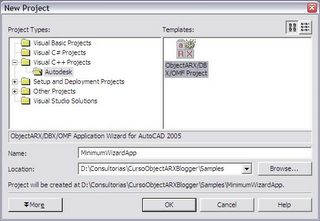
After you install it, open Visual Studio.NET, open File menu and start a New Project. The following dialog will appear and you will find a new node inside Visual C++ Projects folder which is called Autodesk. Select this node and the ObjectARX/DBX/OMF Project icon will appear at the right side as following:


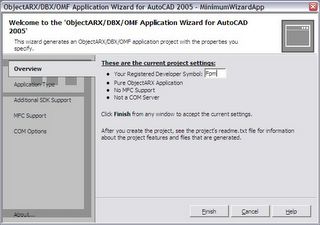
Fill out the Name field and specify the desired location to create the new project. Click OK to continue. The following dialog will appear:


This dialog presents the steps to setup your new project. The first page, called Overview, shows some information and give you the opportunity to inform your RDS (Registered Developer Symbol). This label will be used to prefix anything that your code could implement and could conflict with other third-party applications. To allow this prefix to be unique, Autodesk provides (through ADN subscriptions) a way to register your prefix and inform other ADN members. Even you are note an ADN member you should create your own RDS. Use your initials, your 3 name first chars or any other name you find clear and useful.

The next step is to choose your desired Application Type. As I have mentioned before, ARXWizard suggests the ARX / DBX types which are basically the separation of Interfaces and Custom Classes. More details about the main differences between ARX and DBX can be found at ObjectARX documentation. This time we will choose the ObjectARX option as follows:


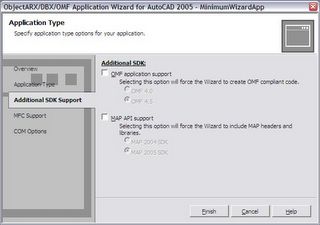
The next step is about Additional SDK Support which allows you to extend basic ObjectARX features to an specific Autodesk vertical. There are two options:

  • OMF Support: This is the SDK extension for Autodesk Architectural Desktop (aka ADT) which contains specific features that could be used if you plan to develop an ObjectARX application to run inside ADT;
  • MAP API Support: This is the SDK extension for Autodesk MAP which contains extra features to be used if you plan to develop a MAP ObjectARX application.

In our case, we will develop an ObjectARX application targeting plain (or vanilla) AutoCAD so leave both blank.


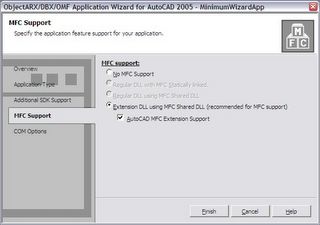
The next step is to specify MFC Support. As I mentioned before we will use MFC Extension DLL project type. This dialog also offers the option to enable AutoCAD MFC Extension Support which will allow you to use specific AutoCAD controls like LineType combo boxes, Color combo boxes, Dockable dialogs, etc. This is pretty handy once those controls are not so simple to implement from scratch. Select Extension DLL and enabled AutoCAD MFC Support:


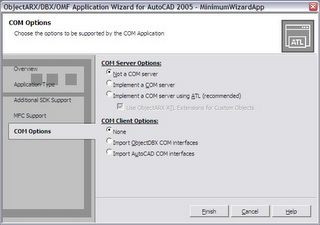
The last step is dedicated to COM related stuff. ObjectARX supports COM implementations on both Server and Client sides. As COM programming is very complex and is beyond this course scope so I will not cover it.


Leave the options on the Not a COM Server and None. Click Finish to proceed.

Now you can open the project files and see what the ARXWizard has done for you. There are a lot of differences between the project we have created on previous class and the present project because ARXWizard use different implementations using handy classes. We will cover these features several times with our upcoming samples on the next classes.

Compile and Build the project and try to load the resulting ObjectARX application inside AutoCAD. You probably will be able to successfully load it.

Thursday, February 17, 2005

Class 3a - Minimum application

Hello,

On this class we will implement the minimum ObjectARX application without use the ARXWizard. To do that we will need to create the Visual C++ project from scratch and perform some tuning on project settings.

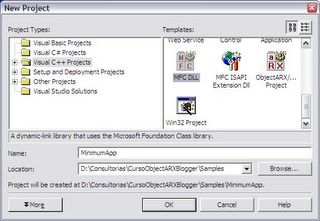
To begin, open your Microsoft Visual C++ .NET 2002. Open File menu, then choose New and New Project. The following dialog will appear (note that this dialog can change a little bit depending on what add-on your have installed):


On this dialog, choose Visual C++ Projects tree node and, on the right portion select MFC DLL template. After that, specify the name and location you would like to use for this project. Click OK to continue.

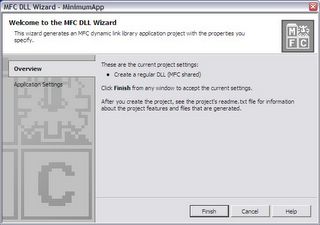
After click OK the following dialog will be displayed. This dialog has two steps (in this case). The first step, called Overview, just confirm what you have entered before.


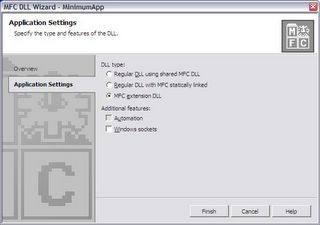
Clicking on the Application Settings step, the following page will appear inside this dialog:


Now we will choose the MFC extension DLL that is the most adequate DLL type to build ObjectARX applications. Note that the use of MFC is not an obligation. You can build ObjectARX applications without MFC but I strongly recommend you to always use MFC because if you don't need MFC now you probably will need it in a near future.

I would like to avoid more technical discussions on this subject because this is not our focus on this course. MFC is a huge and rich library that will avoid several lines of code and will make your application safe and easy to manage. Click Finish to continue.

After clicking Finish Visual C++ will create the MFC DLL project files for you with basic implementation of some features. Remember, this is just a minimum application and we will only make a few things to turn it ready to compile, build and load into AutoCAD.

The Visual C++ environment is very intuitive and I guess you will not face much trouble to learn how to use it. Basically it has a project management area (default placed at left side), an editor area (placed at the right portion) and the command / monitor area which is placed below. The project management area uses a tab dialog bar to provide tools like Solution Explorer, Resource View and Class View among many others.

Select the Solution Explorer tab and you will see your project files, organized using a tree. This explorer can handle multiple projects but only one can be the default which has its name in bold font.

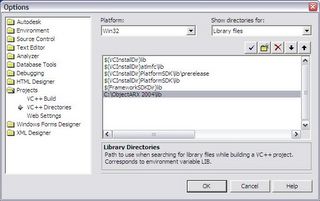
Now we will need to change some basic settings on our Visual Studio environment to allow us to compile and link ObjectARX application. As I said on previous classes, to build the application, which is a DLL, we will need to compile using the provided ObjectARX headers (.H files) and to link with ObjectARX libraries (.LIB files). The easiest way to do this is to change the global Options of Visual Studio. This will affect all projects and you won't need to do this again for new projects.

Open the Tools menu and select Options (the last entry). The following dialog will appear. Select Projects and then VC++ Directories. On the Show directories for field, select Include files. Below will appear a list of the include directories that Visual Studio already has and we will add our ObjectARX inc path which contains the desired .H files. Click on the folder icon and click on the ellipsis button and search for the inc path (in my case, it is placed at C:\ObjectARX 2004\inc).


Don't click OK. Now we need to add the library files directory. Select Library files on the Show directories for field. Repeat the above procedure to add a path but this time you will add the lib path (in my case, C:\ObjectARX 2004\lib). Click OK to finish.


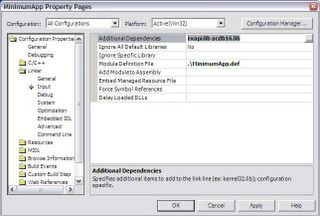
Now we need to configure our project. This will require some project settings change and some code typing. First, we will change the project settings. Right click the project name inside Solution Explorer and select Properties. The following dialog will appear. Select, on the Configuration field, All Configurations. This will allow us to change both Debug* and Release* settings at the same time.

On the Configuration Properties node, select C/C++ and Code Generation. The right portion of this dialog will display a list with several properties. Select the Runtime Library entry and chance its value to Multi-threaded DLL. This is a requirement to make our DLL compatible with AutoCAD environment.


Now, select the Linker node and General. On the Output File entry change the extension name from DLL to ARX. Note that Visual Studio use several macros (those names with a $ at beginning) to allow easy and flexible path configuration.


Still inside Linker node, select Input. Here we will add those libraries our application will use. This will depend on what features you are using inside your ObjectARX application. In this case, we will add just the basic two libraries called rxapi.lib and acdb16.lib.

Select the Additional Dependencies entry and click on ellipsis button. Type the two previously mentioned files. These libraries are located at lib folder. Remember that on previous classes I have talked about the features each library has built in.


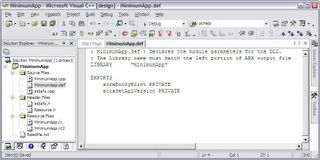
Click OK to close Project Properties dialog. Now we still need to do some code typing. The first step is to edit the DEF file which is placed at Source Files folder of your project at Solution Explorer. Double click the DEF file and it will appear at the right portion of Visual Studio window. We will need to add the following lines, under the EXPORTS section of this file:

acrxEntryPoint PRIVATE
acrxGetApiVersion PRIVATE


Pay attention to the name between quotes in front of LIBRARY section inside this file. This name must be the same name you have entered on the output file. In other words, if your project generates a ABCD.arx file you need to have LIBRARY "ABCD" inside the DEF file.


The next step is to change our StdAfx.h file which is the key compilation file. We will need to inform Visual Studio to use Release version of MFC libraries when our project is being compiled using the DEBUG directive.

To do that, open the StdAfx.h file which is located at Header Files folder inside Solution Explorer. Before the #include line, insert the following code:

#if defined(_DEBUG) && !defined(_FULLDEBUG_)
#define _DEBUG_WAS_DEFINED
#undef _DEBUG
#pragma
message (" Compiling MFC header files in release mode.")
#endif

Now, scroll to the end of this file and add the following lines to manage the _DEBUG symbol back and to include basic .H files our application will need:
#ifdef _DEBUG_WAS_DEFINED
#define _DEBUG
#undef _DEBUG_WAS_DEFINED
#endif

// ObjectARX Includes
#include "rxregsvc.h"
#include "acutads.h"

The last step is to add our acrxEntryPoint method which is our application start point. Open the CPP file of your application which has the same name that you have set to your project plus the CPP extension. It is placed inside Source Files folder. Open if and scroll down to the end. Add the following lines:

// ObjectARX ENTRYPOINT
extern "C" AcRx::AppRetCode acrxEntryPoint(AcRx::AppMsgCode msg, void* appId){
switch(msg) {
case AcRx::kInitAppMsg:
acrxUnlockApplication(appId);
acrxRegisterAppMDIAware(appId);
acutPrintf(_T("\nMinimum ObjectARX application loaded!"));
break;
case AcRx::kUnloadAppMsg:
acutPrintf(_T("\nMinimum ObjectARX application
unloaded!"));
break;
}
return AcRx::kRetOK;
}


Now we are ready to build our application. Open Build menu and select Build Solution (or F7 key). Visual Studio will compile and link and build your project. If you have followed all above steps carefully it will generate the application without any error.

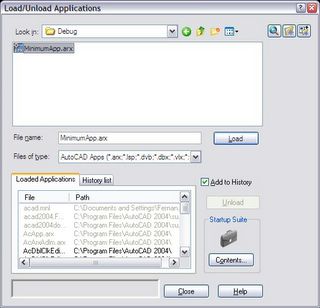
Start AutoCAD and run APPLOAD command which will show the following dialog. Browse to your project and you will find the application inside the Debug folder which is the default compilation type. Select it and click Load button. A message will appear at the bottom of this dialog telling you that your ARX was successfully loaded or not!


That's it, your first ObjectARX application is loaded and is running inside AutoCAD!
Next class we will do the same using the ARXWizard. Stay tuned!

Tuesday, February 15, 2005

Appendix A - Debug versus Release

ObjectARX and ObjectBDX applications could be compiled using Debug or Release configurations. For those who are beginners with programming is very important to know what are the differences between these two types of compilation.

When your are developing an application you will pass through several steps before it reaches the deployment phase. These steps are very important to detect bugs inside your application, correct them and make your application as much secure as you can.

When you are on the phase prior to deployment you will probably need to debug your code. The debug tool, using a simplistic point of view, is just a way to follow your application execution mapping what is happening on the execution environment to the corresponding line at your source code. This tool is powerful and essential to troubleshoot your application.

To make this happen, Visual Studio compiles your code adding debug information that will allow it to map events to your source code, show variables, show memory stack, code flowing and much more. This is pretty handy and helps a lot! Matter of fact you can't live without the debug tool. Due that, your resulting application is linked with Debug versions of extensions you are using like MFC. If you deploy your Debug version to your clients they will face trouble to load it because the probably will not have those debug libraries available.

Suppose your application uses the mfc42.dll which is a common situation. When you compile your application using the Debug type it will use the mfc42d.dll which is the debug version of the original DLL. When your client tries to load the application, Windows will search for the required DLL (debug version) which does not exist in that machine and will fail to load.

Worst than deploy Debug version is do ship the debug version of those DLLs your application needs. These DLLs are for development purposes only. Please, don't do that!
There are much more issues involved on this but basically you should follow the following ground rules:
  • Use the Debug compilation for development purposes only;
  • From time to time compile and test your application with Release version because Debug compilation is more robust and may hide some runtime errors that Release version won't;
  • Don't ship debug versions of Windows or third-party libraries except for debug purposes;
  • Use the _DEBUG symbol directive to isolate parts of your code that are only interesting when debugging. For instance, some trace messages are very interesting to you but users will hate to keep seeing them every time.

At the last, debug compiled applications has a higher file size (sometimes almost 5 times greater than Release version).